.jpg)







A laser printer rarely stops without warning. First the print gets lighter, or a line appears down the page. Before you spend money on a new cartridge, work through these checks. Most take less than a minute.
1. Shake the cartridge gently
When toner runs low, the powder settles unevenly and one side of the page prints lighter. Take the cartridge out, hold it level and rock it slowly from side to side five or six times. Put it back and print again. This often gives you dozens of extra pages, which is enough time to order a replacement.
Do this over a sheet of paper, and never shake hard. Toner powder is very fine and stains clothes.
2. Check for a sealing tape on a new cartridge
If a brand-new cartridge prints blank or very faint pages, the protective tape or orange clip is probably still on it. Remove the cartridge and pull the tab straight out as shown on the leaflet in the box.
3. Turn off toner-save mode
Many printers have an Economy or Toner Save setting that prints lighter on purpose. Look in the printer menu under print quality or density, and in the printer settings on your computer. Set density to normal.
4. Look at where the marks are
The shape of the problem tells you which part is at fault:
- Light across the whole page: low toner or toner-save mode.
- Light on one side only: uneven toner. Shake the cartridge.
- A thin black line from top to bottom: a scratch or dirt on the drum.
- A white line from top to bottom: something blocking the laser, or a dirty strip inside the printer.
- The same spot repeated down the page at equal distances: a mark on the drum or a roller.
- Grey background over the whole page: a worn drum or damp paper.
5. Clean the corona wire on Brother printers
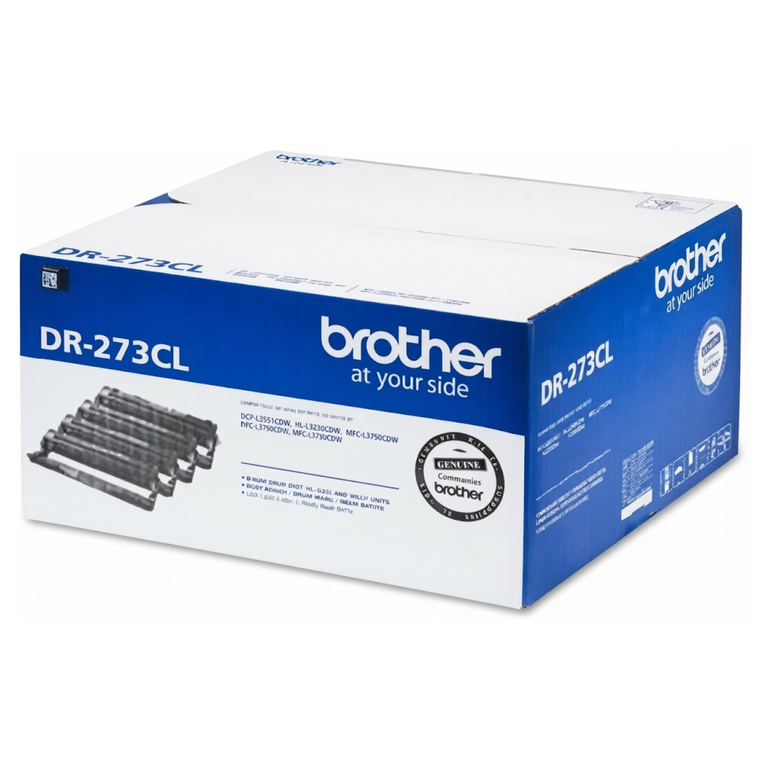
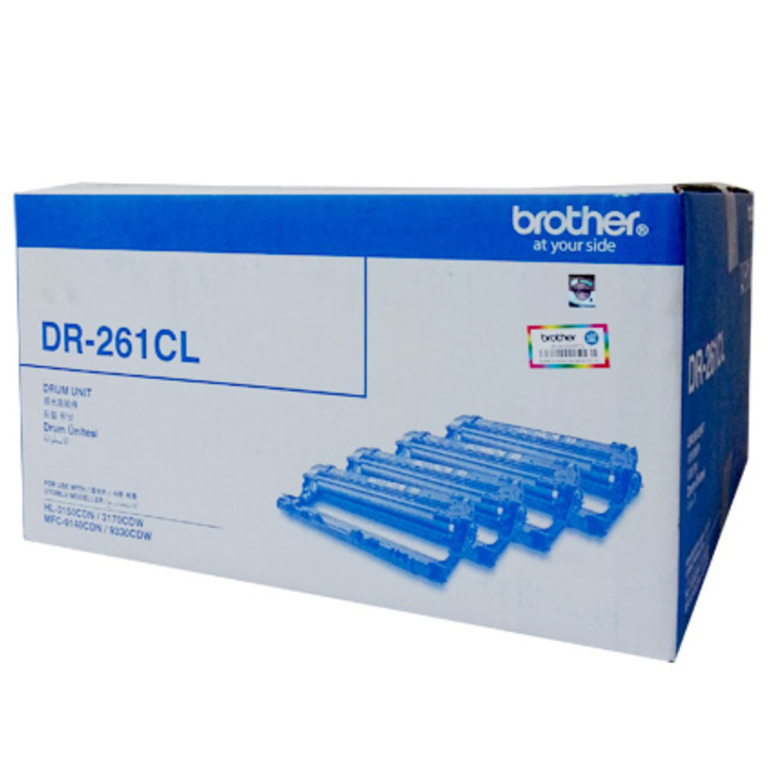
Brother drum units have a small coloured tab on top. Slide it from one end to the other and back a few times, then return it to its home position. This cleans the wire that charges the drum and often removes a vertical line straight away.
6. Check the drum
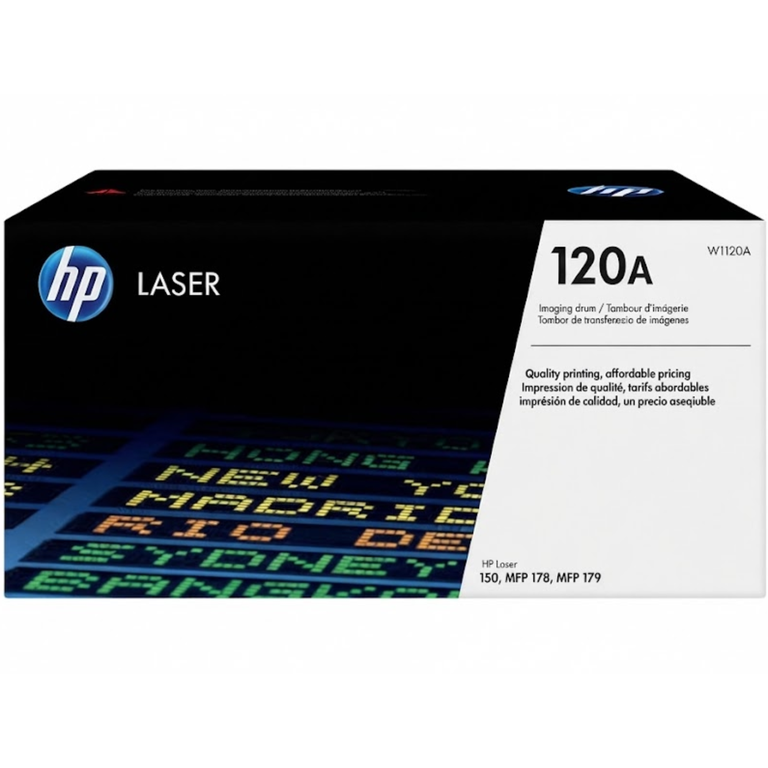
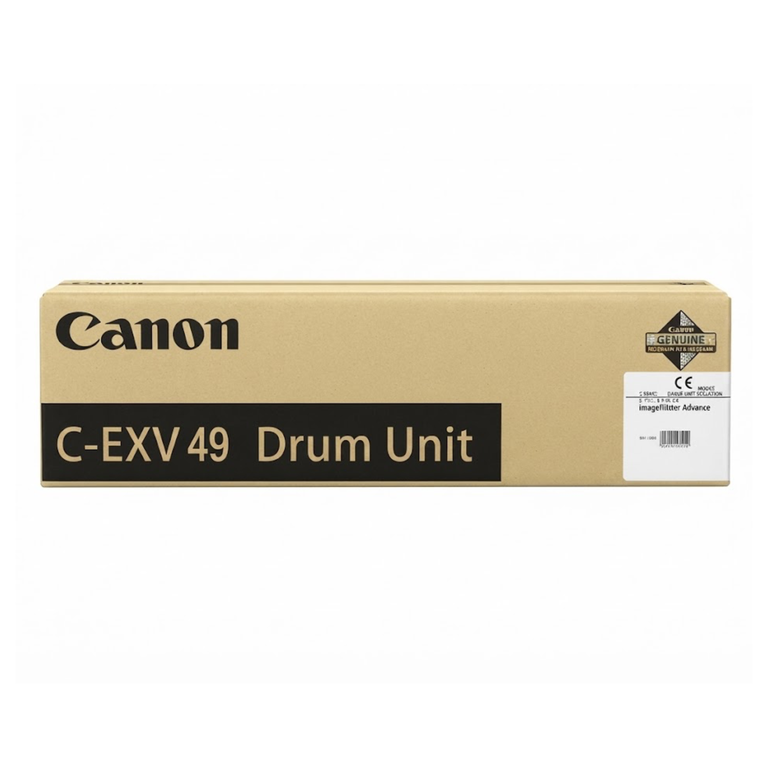
In most HP and Canon printers the drum is part of the toner cartridge, so a new cartridge also gives you a new drum. Brother printers and many office copiers have a separate drum unit. If lines or repeating spots stay after you change the toner, the drum is the part to replace. Keep drums away from bright light and do not touch the shiny surface.
7. Try fresh paper
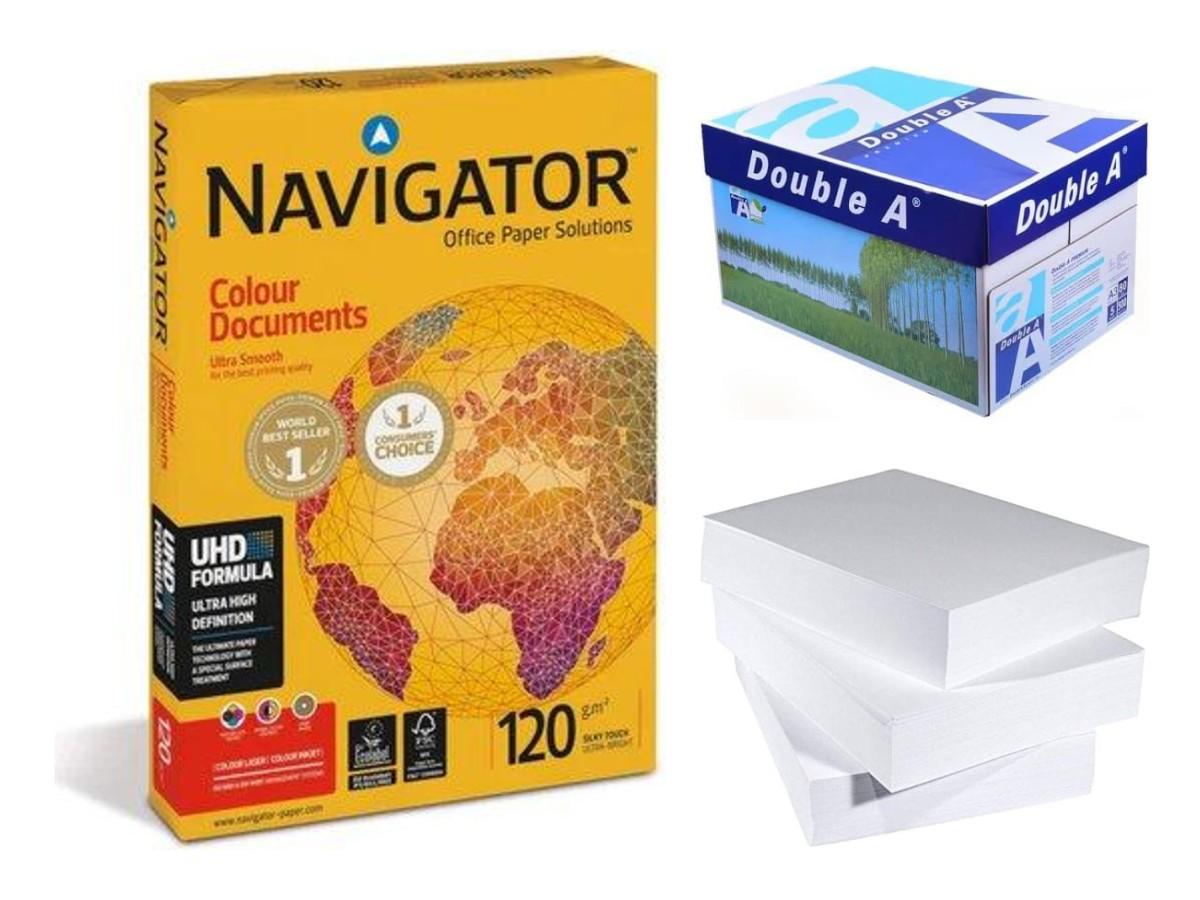
Paper absorbs moisture when a ream is left open, especially in a room where the air conditioning is switched off at night. Damp paper gives patchy, grey prints and causes jams. Print the same page on paper from a newly opened ream. If the print is clean, the paper was the problem. Our A4 paper guide explains how to store paper properly.
When it really is time for a new toner
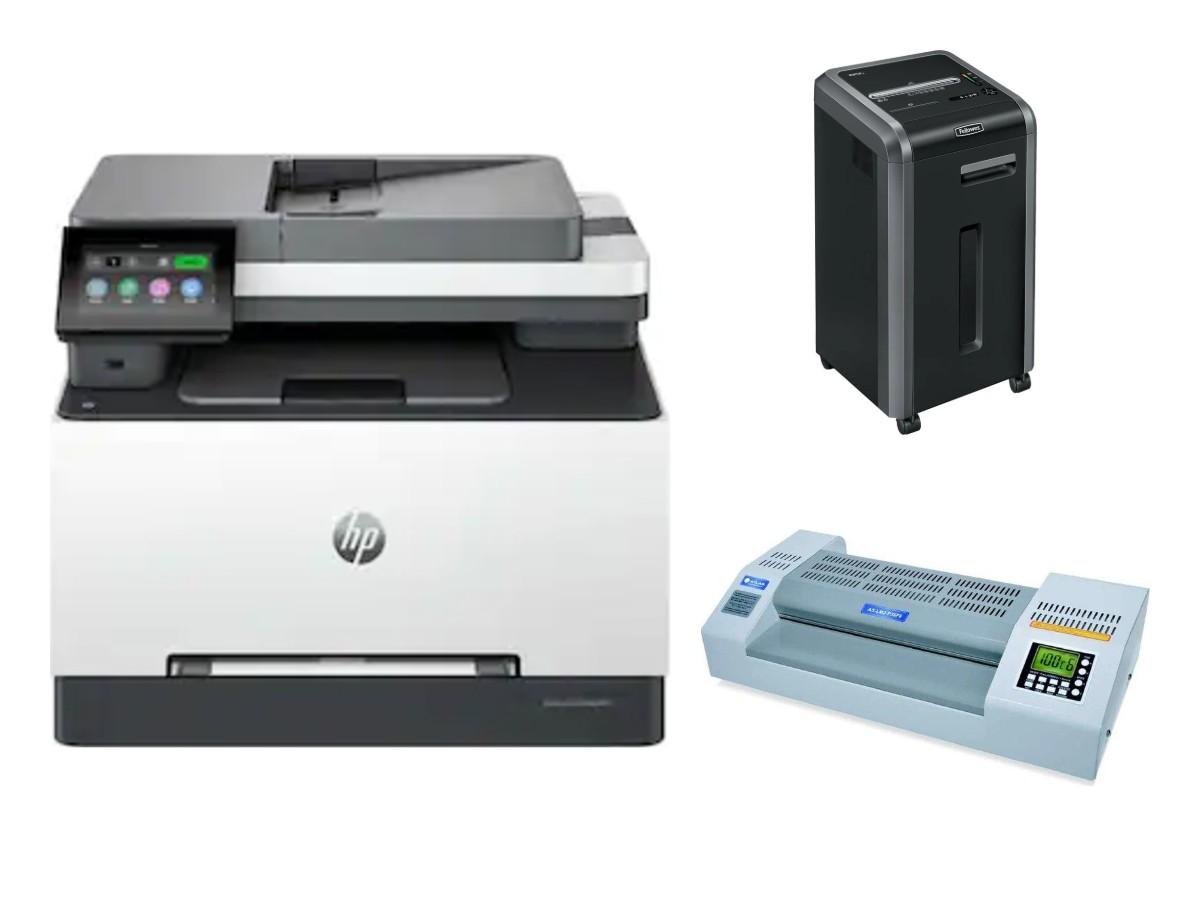
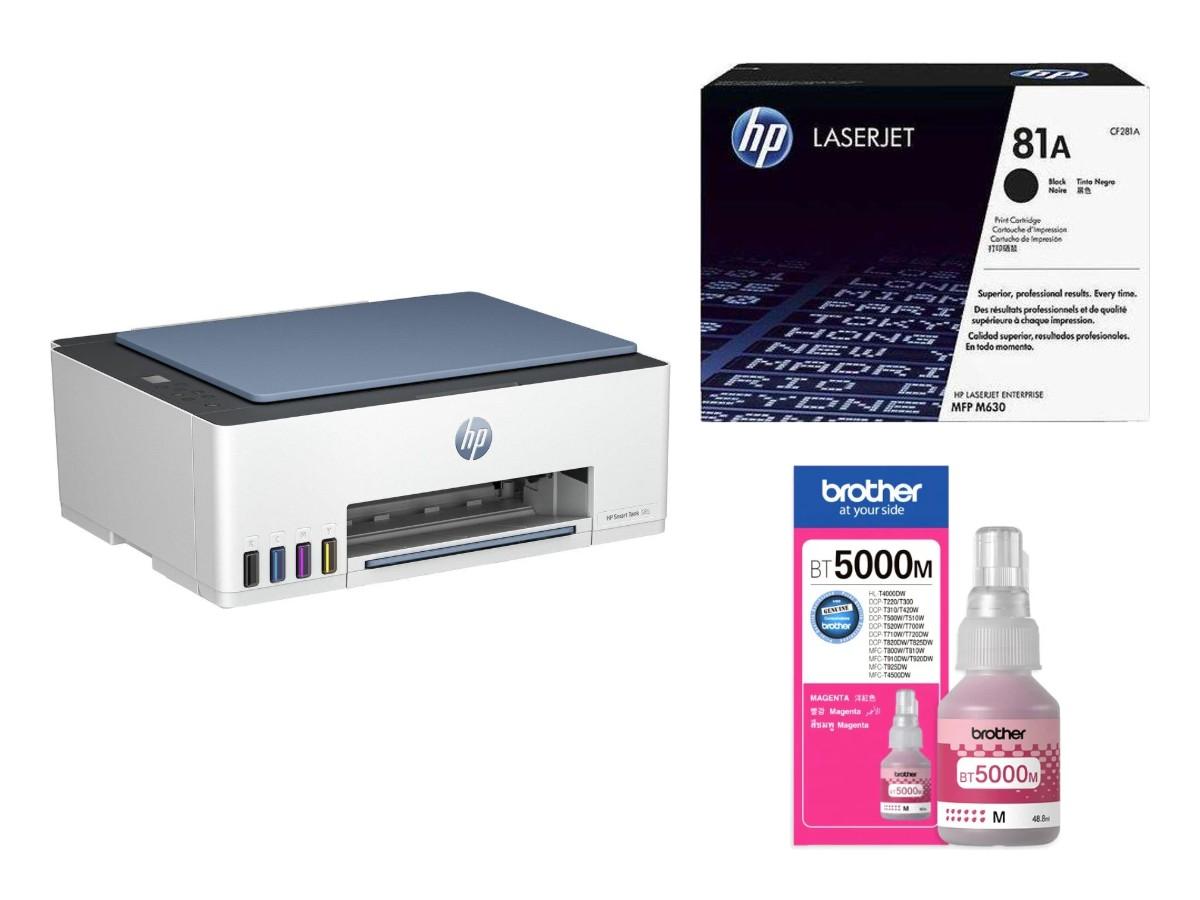
If the print is still faint after shaking the cartridge and the printer shows a "toner low" or "replace toner" message, order a new one. Find the number on the old cartridge and match it using our toner finder guide, or browse Printers & Toners in the shop.
Not sure what the marks on your page mean? Print a test page, take a photo and send it to us on WhatsApp. We can usually tell from the picture whether you need a toner or a drum.
.png)
.png)
.jpg)